

1.
Manage Office Anywhere
Office Anywhere is a mobility feature that allows calls placed to your office phone to ring any phone(s) you designate, such as your mobile phone.
2.
Add a Phone Number
To add a phone number to Office Anywhere, follow these steps:
- From the dashboard menu, click Office Anywhere.
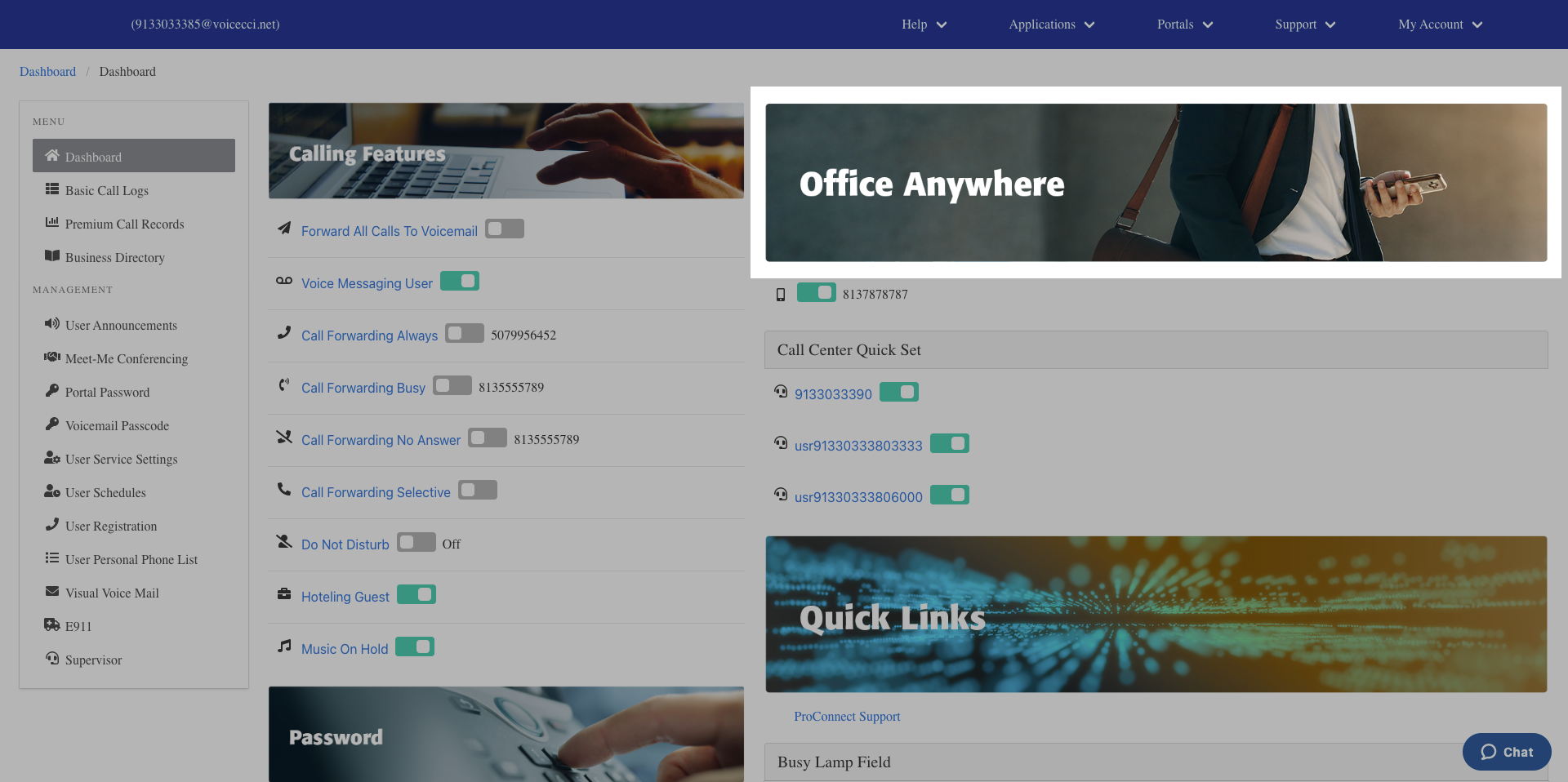
- On the Anywhere Setup page, click the Plus icon in the Phone Numbers table header.
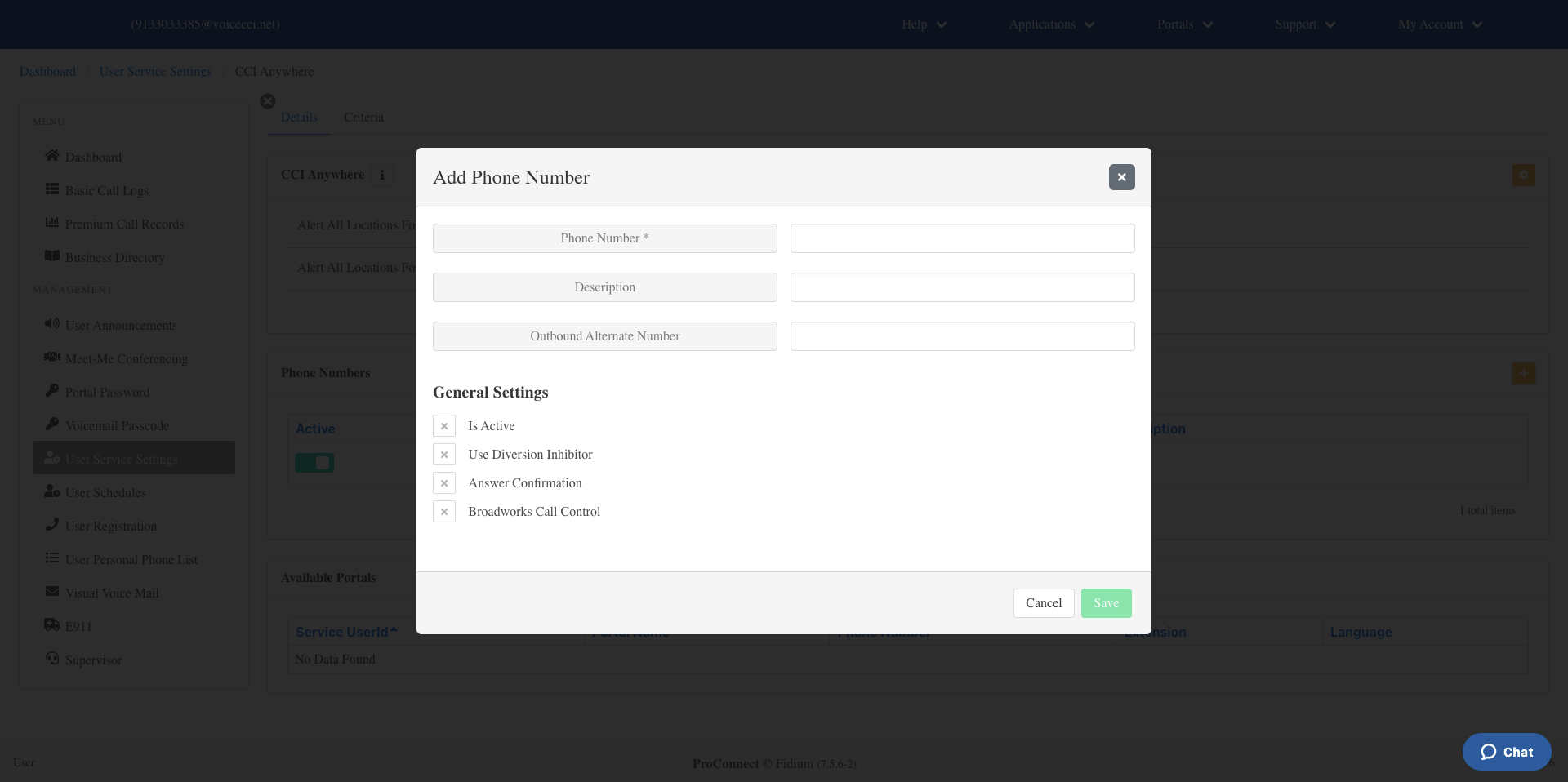
- Enter the phone number and description in the appropriate fields.
- Enable any of the following options as needed:
- Is Active — Select this option to activate this phone number to ring when someone calls your office phone number.
- Use Diversion Inhibitor — Select this option to prevent voicemail from picking up before your call is transferred to your Anywhere number. This is especially useful when Simultaneous Ring or Sequential Ring is enabled, as it continues to ring all lines rather than transferring the call to voicemail. Also prevents your Anywhere location (e.g., your mobile phone) from forwarding incoming business calls or sending them to voicemail if Do Not Disturb (DND) is enabled.
- Answer Confirmation Required — Select this option to prevent calls from inadvertently going to your mobile voicemail when the call is unanswered, your mobile phone is off, or you have no cell coverage. The caller will only be connected after you press any digit on the keypad. Note: When enabled, this option can help you distinguish incoming business calls from personal ones, though it may be cumbersome while driving.
- Call Control — Select this option to allow you to enter Feature Access Codes (FACs) while on a call to use features like call transfer and hold from your personal phone.
- Click Save.
3.
Configure Anywhere Settings
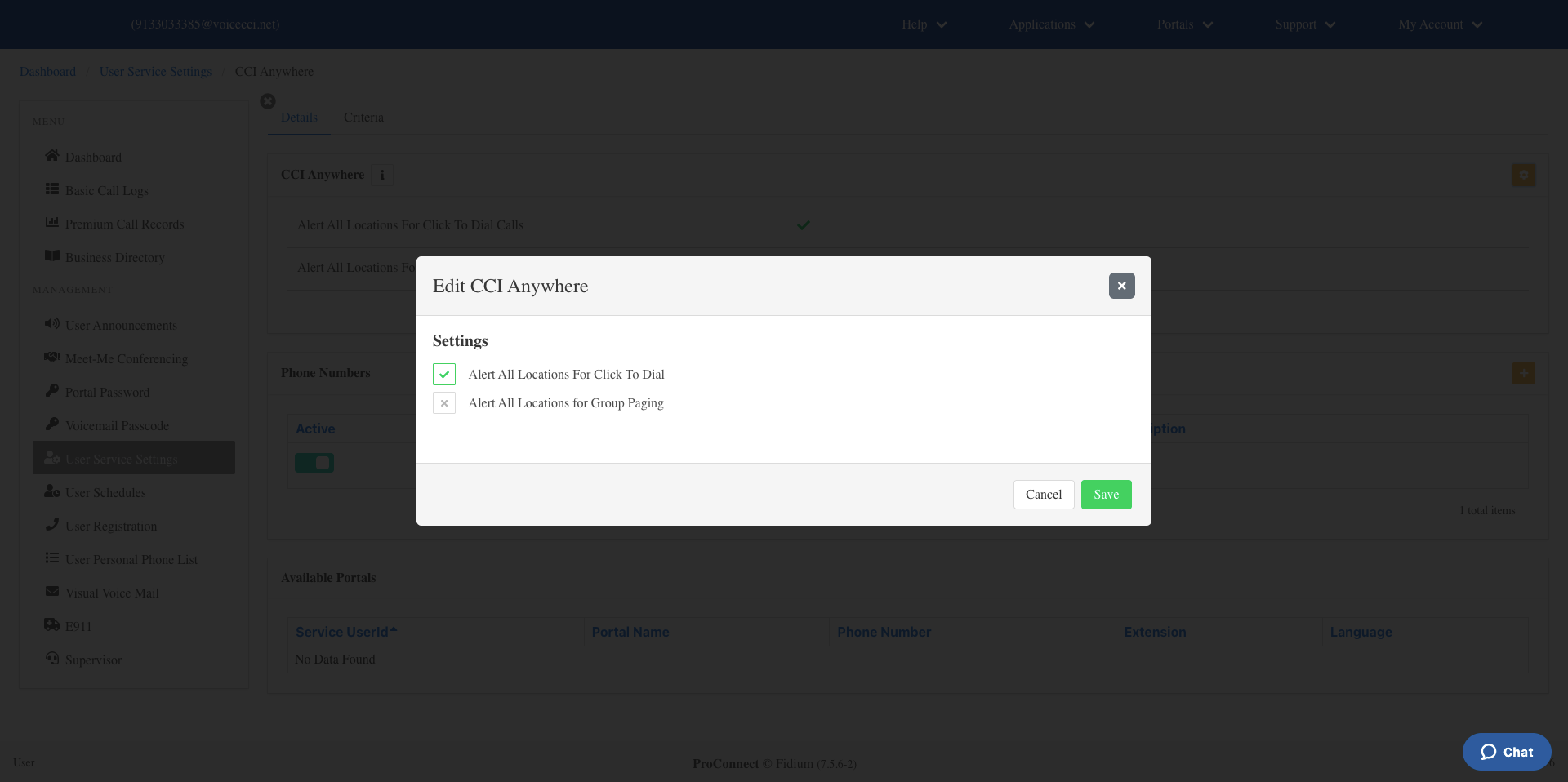
- From the Anywhere Setup page, click the Settings icon.
- Enable any of the following options as needed:
- Alert all enabled Locations for Click-to-Dial — All Anywhere phones will ring when you place a Click-to-Dial call.
- Alert all enabled Locations for Group Paging — All Anywhere phones will ring when you receive a Group Page.
- Click Save.